 COME
COMECOME Setup Interrupted: Download, Install or First Open?
Find the last stage that completed before retrying: browser transfer, Android installation or first app opening. Each stage has different evidence and a different next step.
A browser interruption
Open Downloads in the browser that handled the transfer. An active, paused or failed entry belongs to the file-saving stage. If no completed file exists, Android has not yet had that file to install. Start with the connection, browser status and supported retry action.
Do not repeatedly open a partial entry or rename it to make it look complete. The browser's completion status is more useful than a visible filename. If there are multiple attempts, identify the one linked to the source and release you intended.
An installer interruption
If a completed package opened Android's installer, the download stage has been passed. Record the exact installer message and whether an app was installed or a previous installation remains. Compatibility, storage, file problems and identity conflicts require different investigation.
If Android identifies harmful behaviour, follow the device protection guidance and stop. For a general error, use the message and source information rather than diagnosing a specific cause from the words App not installed alone.
A first-open interruption
If Android reported installation complete and the app begins opening, a blank screen or network message is later in the process. Test connectivity separately. COME's General help includes Network Issue, with advice to check the connection or switch networks.
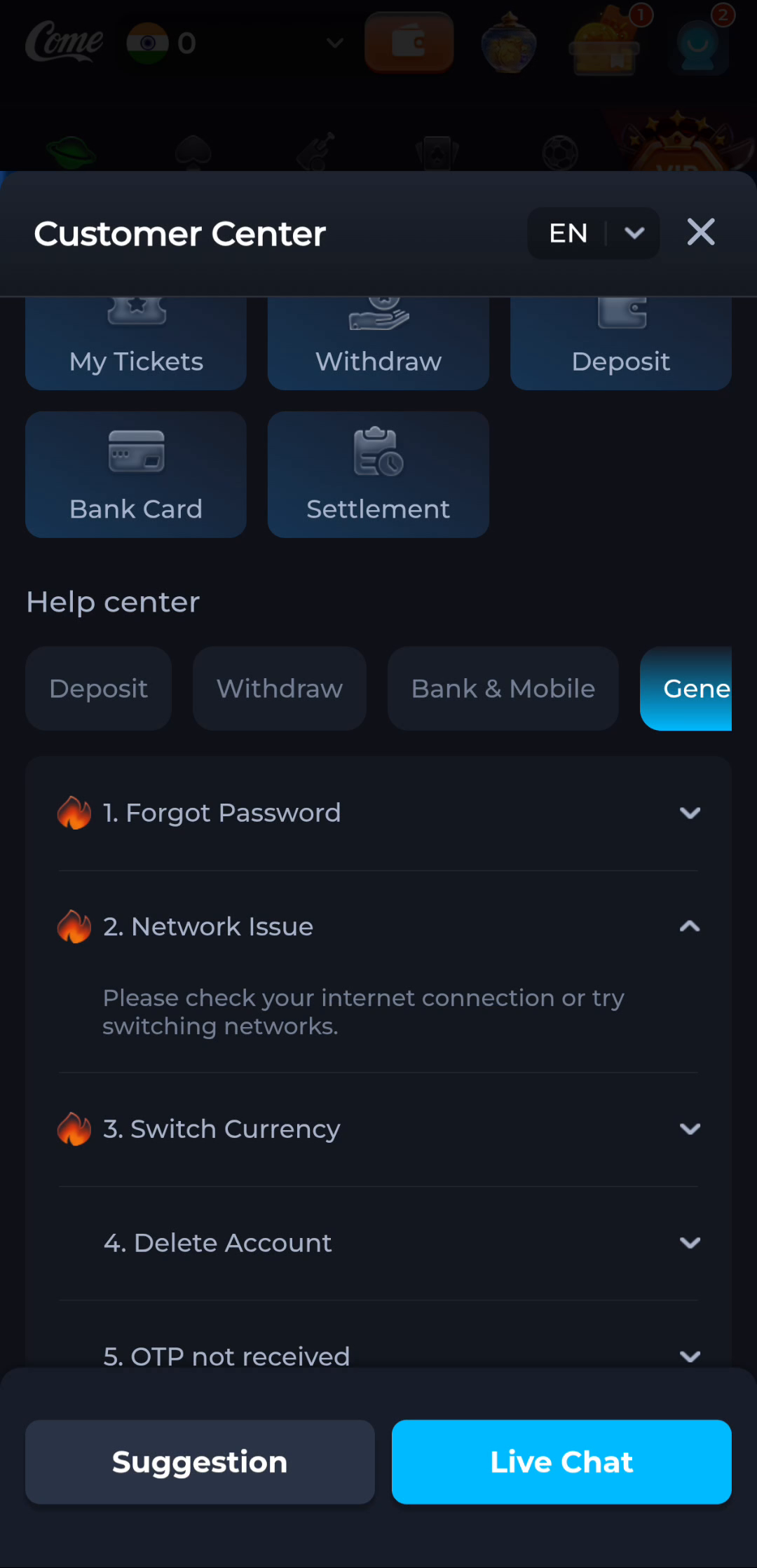
A login problem is another branch. If the service loads but the existing account cannot be accessed, use the appropriate recovery route. Downloading another package does not verify a password or recover an account by itself.
Write a simple sequence
Use three statements: what you did, what completed, and what appeared next. For example: “The browser showed the transfer complete; Android installed the app; the app then showed a network error.” That sequence points to first opening instead of an incomplete transfer.
For an update, add whether the old app still opens and which version it reports. Keep a working installation while you investigate. Do not uninstall merely to recreate the failure unless reliable device or product guidance specifically calls for it.
Retry after a relevant change
A retry is useful when you corrected the factor linked to the failure, such as restoring connectivity during a transfer. Repeating the same action with the same file and unchanged conditions adds little information. Record the result of a deliberate retry before moving on.
If the same failure persists or a warning remains unresolved, stop and use the source, device or in-app help appropriate to that stage. Remove secrets from any screenshot or message explaining the issue.
Know when to stop
The immediate task is complete when you can name the failed stage and the next relevant action. Successful file saving, installation and account access are separate results; verify each rather than treating one as proof of all three.
Related: COME Listing, APK File and Installed App: Compare the Details